

How to Note Transfer for TV & Feature Scripts
Note Transfer for TV & Feature Scripts is an essential script revision process for any entertainment professional who loves saving time, money, and their sanity. Transferring notes digitally means no longer taking hours (yes, hours) to re-copy and reprocess your script notes every time there’s a new draft. You’re no longer beholden to post-its, highlighters, and paper scripts. You’re digital in the digital age. You’re finally free.
How can you note transfer the most efficiently? With Scriptation’s Note Transfer function, designed by TV & Feature Script writers for the cast, crew, and execs they witnessed wasting reams of boxes of trucks full of paper.
Have someone in your work life still busting out the pencil & paper every time a blue draft script revisions drop? Then forward them this page, and tell them the download is free. It is!
Get your free Scriptation download right here.
WHAT IS SCRIPTATION?
Scriptation is the Emmy® Award–winning PDF annotation app built specifically for working with scripts. Scriptation makes it easy to mark up your script with their custom annotation tools, something you’ll love even more once you realize that doing so in the app means carrying the notes effortlessly no matter how many revisions drop.
Scriptation’s standout feature is Note Transfer, which automatically carries your annotations to new drafts so you never lose your thoughts or need to re-copy anything. If lines change, scenes move, or characters get added/deleted, Scriptation intelligently relocates your notes and even keeps anything that doesn’t match in a dedicated section so nothing gets lost.
Don’t have time to read the changes yet? Then use the amazing Compare Scripts feature to see what changes, and where. You’ll have to ask the writer why, but if you’re using Scriptation you’re going to have a lot more time to do so.
HOW TO TRANSFER NOTES BETWEEN SCRIPT DRAFTS
Step 1 – Mark Up Your Current Draft
Transferring your notes in Scriptation is done in four simple steps.
Can’t transfer notes without taking some notes, right? Go ahead, start compiling your script notes, thoughts, and annotations in the latest draft of your script. There’s plenty of Scriptation blog posts we have about the best ways to do so; go nuts. Get comfortable. Explore the digital script space.
Then, when a new script revision hits, you’re ready to try your first script note transfer.
Step 2 – Tap the Transfer Button
In the file of your current script, tap the ‘Transfer’ button.
Did we lose you? It’s okay, you’re new to this (but soon won’t be!). To FIND the Transfer Button, look in your header (which you can now fully customize, thanks Scriptation 6.0). The squiggly arrows pictured = the Transfer button.
When you’re ready to move your script notes, annotations, and layers into the newest script revisions, that’s what you click/select/touch/vibe with.
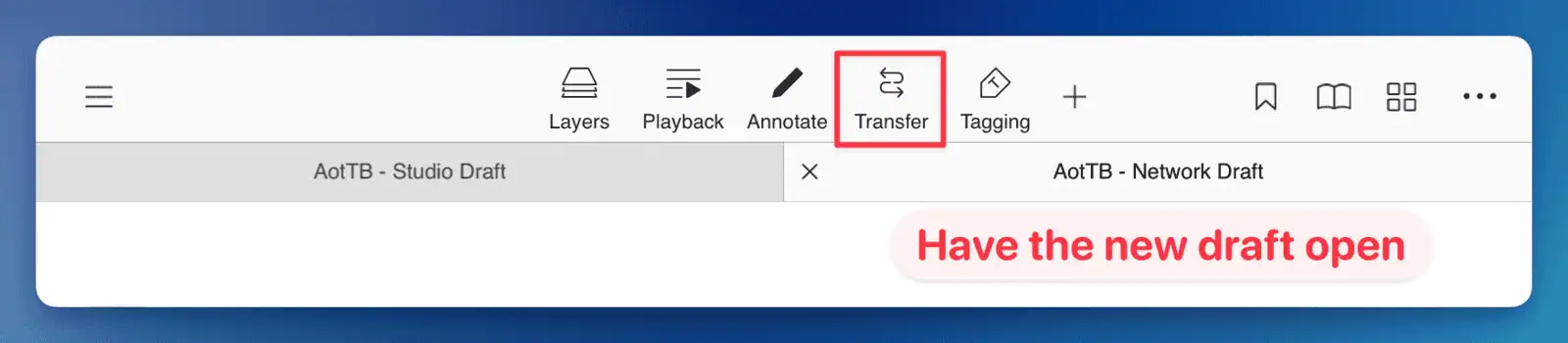
NOTE: There isn’t a bright red box around the *ACTUAL* Transfer Button. It doesn’t say ‘have the new draft open’ on screen, either. But that is vital script note transfer info, as we move to the next step:
Step 3 – Select the New Draft
Choose the new script file you want your notes to move into — White Production Draft to Blue Revisions, Pink to Yellow, or Writer’s Draft–Internal to Writer’s Draft–Revisions. You’ll see the transfer screen, with arrows showing exactly which notes are going where.
Once you’ve selected the new script revision that your ‘old’ notes are going into, you’ll see this screen:
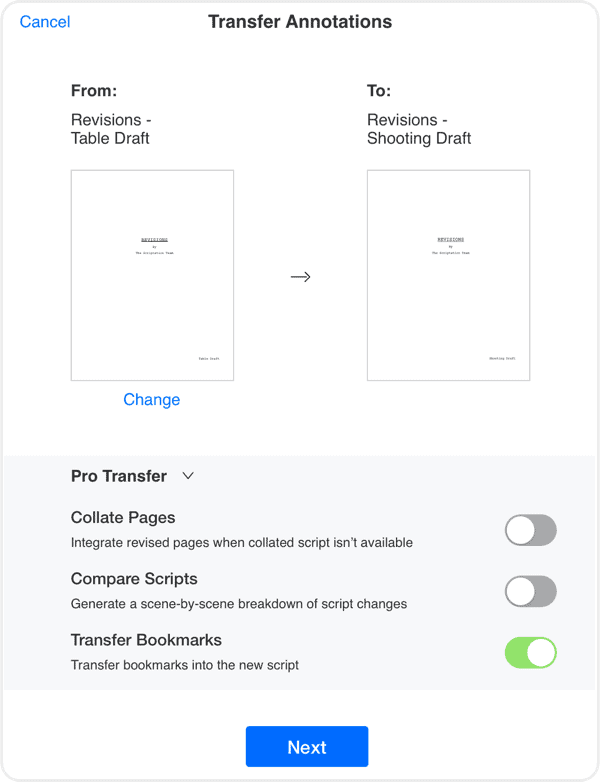
Scriptation geniuses even added the arrows so you’ll always be able to see what notes are transferring where. For Industry Pro subscribers, you also select whether to collate pages, compare scripts, or transfer any bookmarks you created.
To see what happens next in your Script Transfer? Just click ‘Next’…
Step 4: Review the Transferred Notes
You’ve done it! You’ve successfully transferred notes into the new draft and saved yourself tons of time, printing costs, and all sorts of paper.
You can review the Note Transfer to see which annotations were imported, as well as which were deleted. Deleted annotations are notes that existed on material that changed, or is no longer in the script, IE, deleted. You can view the deletions easily (see below), and if there are any key notes you still need? Keep them in the script for later.
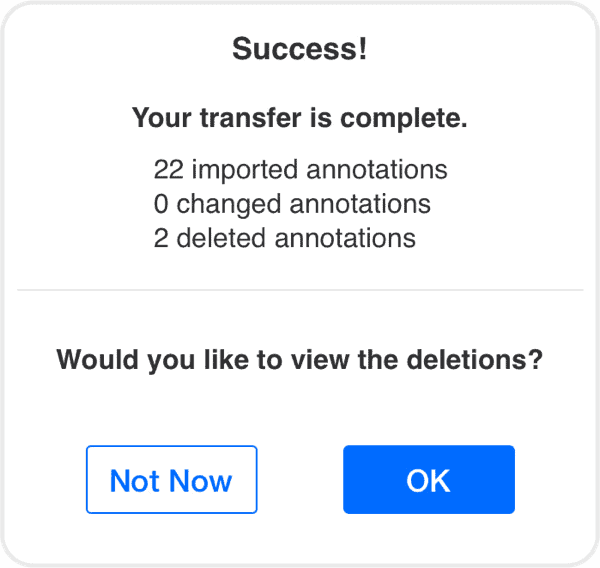
Yes. It’s that easy to transfer script notes between revision drafts. Now you’ll wonder how you ever worked in Production without Scriptation.
SCRIPT NOTE TRANSFER FAQ
Common Note Transferring Questions
Why would I transfer notes in my script?
If you handle color revision pages on your project, it’s going to be so much easier to transfer notes digitally than rewrite them, collate new pages, or even just keep a binder that has every version. You could misplace your binder, but you’re a LOT less likely to misplace your iPad
When is the best time to transfer my script notes?
As soon as the new script PDF is received. Make it a part of your process to get the new script, and transfer notes over from the previous version right away. That way you’re always working with all your notes in one place. Think of the transferring of script notes as replacing the old scan of the cover page to see what pages changed (or if it was a full revision, scanning for revision marks).
I transferred my notes, but can’t find a specific joke alt I was looking for. Where is it?
Check for ‘deleted annotations’ to see what didn’t make the initial transfer; it’s likely not there because the original line you were revising is no longer in the hero script.
Worst case? You can review your previous draft to find the specific line, copy it, and paste it into the new draft manually.
I’m using Layers; will all of my Layers transfer into the new draft, or do I have to do so one at a time?
First off, congrats on using Note Layers, one of Scriptation’s most slept-on features. For the newbies; Layers are a way to take specific script notes for specific purposes. Each ‘Layer’ is able to be viewed – or not viewed – by a simple click of the icon in the Layer menu. When you are transferring script notes in Industry Pro, you’ll have the option to select which Layers make the jump into the new draft.
Is it better to transfer notes on my iPad, iPhone, or Mac?
An iPad is the most popular venue for Scriptation note transfers. Easier to move and be flexible to a shooting location if your script is, too. Desktop and laptop set-ups excel for digging in more than just a read/scan/note review, and iPhones are best for Playback and Rehearsing.
LIFE AFTER NOTE TRANSFERS
What will you do with all that extra time now that you’ve cut hours out of your script revision process? How about taking more time to enjoy what got you into film and TV making in the first place; actually making the projects you’ve always wanted to. With more hours now available in your prep, production, and post thanks to Note Transfer with Scriptation, you can write that new idea. Take another swing at blocking. Research the next great inspiration… or just take a nap.
However you choose to spend that extra time, one thing is certain: you’ll do a better job because of it.
