

How to Organize Your Script Notes
Knowing how to organize your script notes can be the difference between a blockbuster and an outright disaster, especially since script notes come in all shapes and motivations. A demand from the studio, a suggestion from a friend, or the production meeting note that the location just isn’t available for shooting next week. Open any script from any week of a production and you’ll find a similar mess: Production meeting notes in blue. Blocking scribbled over them in pencil. A sticky note covering the exact line you’re trying to read, with a second sticky on top of that (that doesn’t even look like your handwriting). Highlights of things that seemed important to highlight, at some time, to someone. Was it you?
Just look at this script page from Deadpool. Look at it. If it wasn’t a joke, we’d call it a joke.

Everyone’s first instinct is to blame themselves. Be more disciplined. Take more focused production meeting notes. Write less thoughts on the page. Use only the same color pen. Get into voice notes.
That’s the wrong diagnosis. The notes are all necessary; prep thoughts, production meeting notes, tone meeting musings, late night inspiration, on set reminders for post, post ADR needs. Each thing was worth writing when you wrote it. The problem is that a paper script gives you exactly one surface to capture everything, and your job needs several; the back of the page before just won’t do. Blocking notes and department questions and continuity flags and your own private reminders all end up in the same two inches of margin, not because they belong together, but because there’s nowhere else for them to go.
Figuring out how to organize your script notes isn’t really about taking better notes. It’s about being smarter about how you take your notes.
SCRIPT NOTE ORGANIZING TIPS
Organize Your Script Notes with Layers
That’s what Scriptation’s Layers feature is; the smartest way to organize your script notes. Think of each Layer as a transparent sheet laid over the script, and every annotation lives on its own one of them. You decide which sheets, or Layers (See what the name means?) you’re looking at any given time. Look at two, or three, or more at once. Merge them together (but you can’t undo that dance). Isolate, duplicate, send them to a friend or Department head (or both).
No matter how many Scriptation Layers you add (and no one has yet to find a limit), the script underneath them never changes.
Which means blocking notes can sit in one Layer, art department questions in another, and your private “Ask the writer about this” notes in a third, all on the same script, with none of them fighting each other for margin space, back of previous page spots, or voice notes you left yourself from apps you can’t remember.
New to Scriptation, and want to try Layers? Get your two week free trial of Industry Pro today!
BEST APPS FOR SCRIPT NOTES
How to use Layers for Production Notes
So you know Scriptation is the app to use to organize your script notes, and Layers are the feature that’s going to change your workflow. But how do you, you know, actually put all that into practice?
No matter what stage of production you’re in, you can use Layers to break up your thoughts. Every person is different, so each organization style is going to have its fans and detractors, so let’s start where most people on the production will: in pre-production.
In prep, note accumulation becomes a problem. Notes arrive from different rooms on different days (a concept meeting, a tone meeting, a tech scout, endless production meeting notes), and by the time you’re a week from shooting everything’s landed on the same pages in the order they happened, leaving you wonder which “Fix this” was for which slugline. It’s basically the least useful script note organization possible.
So as you start organizing your notes in Layers, give each conversation its own Layer. Name them for the meeting: “Production Meeting Notes“, or for the department: “Props“, or whichever matches how you’ll want to search the script for them later: “Jeff Thoughts Final”. When someone asks what potential revisions came out of the tone meeting, simply turn on your “Tone Notes” Layer and you’re ready to debrief. You can also share your Layer with your department or anyone on the production who needs to see your script notes.

Prep is also where Scriptation can do some of the note-taking for you. Info Layers generate production information automatically: revision colors pulled from each page header, oversized scene numbers for easy whole-script scanning, scene dividers, 8th page counts, even the always-helpful dialogue numbering. If you’ve ever counted eighths by hand, Info Layers is worth the trial on its own. And because Info Layers regenerate with each revision, they stay accurate when the pages change. And they will change…
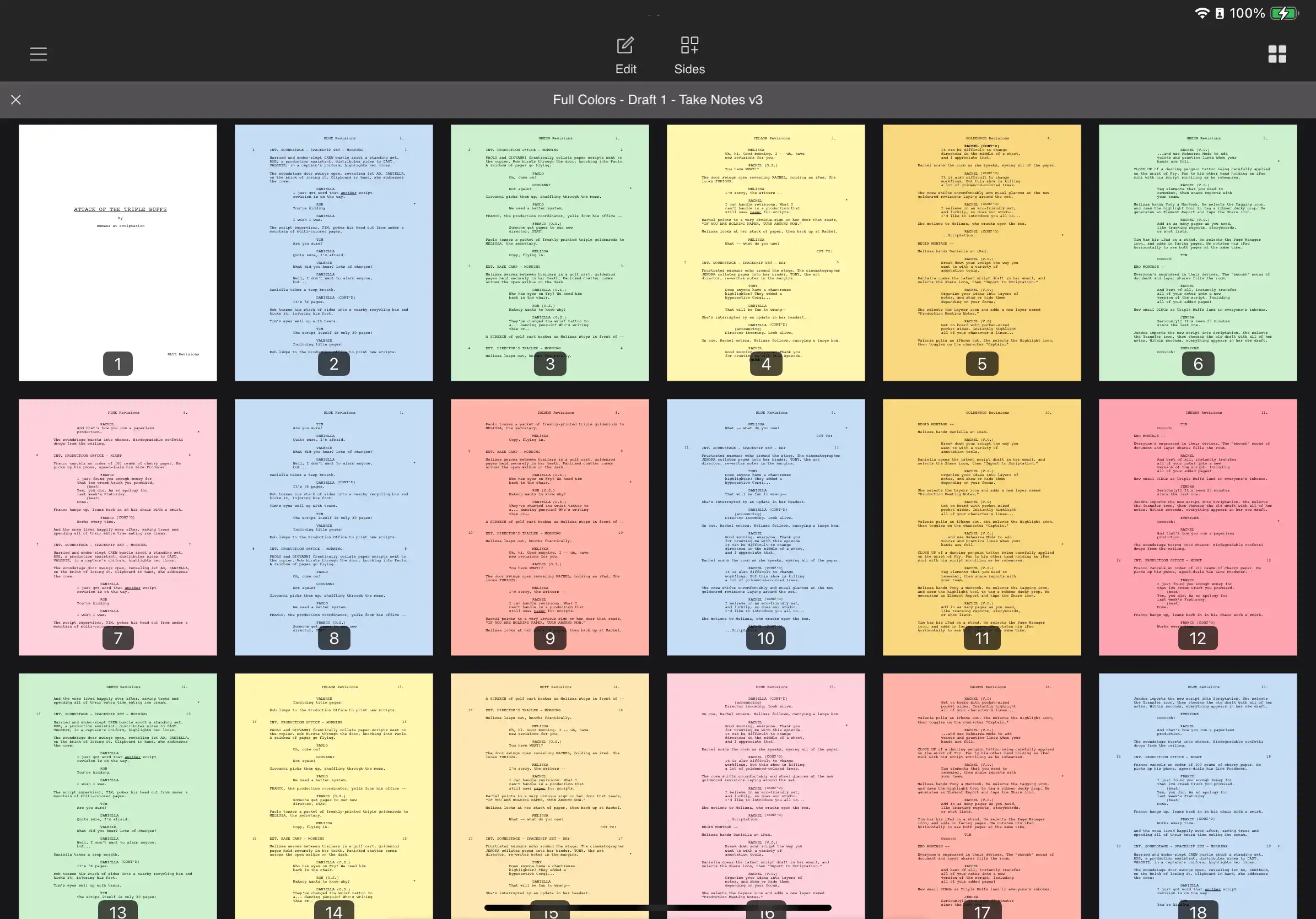
If revision colors are new to you, we broke down what blue pages and the rest of the revision order actually mean.
HOW TO KEEP PRODUCTION MEETING NOTES
Maintaining Layers through Production
In prep you were filing notes away for later; now it’s later, and you’re retrieving, fast, usually while someone waits for the answer you’re desperately trying to find. The organization that once helped you collect has become the organization that slows you down. M. Knight, what a twist!
Luckily, Scriptation’s Layers are built for the script note process across the entire production. Too many Layers from Prep? Then Merge the Layers! Turn six meeting Layers into one set of notes for any specific day of shooting. Hide anything that isn’t today’s problem. The page in front of you shows the notes you need and nothing else, which is the entire point of being organized!

There are two good habits to adopt as you make Layers part of your workflow. First, Duplicate before you merge, because merging isn’t something you want to reverse at 2 AM. Because you can’t. You can’t unmerge. No matter what time it is.
Second, remember only one Layer is editable at a time, marked with a pencil icon; if your notes keep landing somewhere unexpected, check to make sure you’re in the correct Layer.
When revisions come in, Note Transfer carries your annotations into the new draft and your Layer structure comes with them. Every time.
HOW DO I SHARE MY SCRIPT NOTES?
How to Share Layers
The last problem is one paper scripts handle the worst: sending someone your notes without sending them all your notes. You know, the parts where you write things like “Need better performance” or “This joke is weak”.
On paper, the options are photograph the page (which includes everything) or rewrite the relevant notes somewhere else, which takes time, effort, and worst of all, more paper. With Layers? You simply export the one Layer that matters. Some examples…
PREP: Send your “Art Department Mtg” Layer with all your thoughts and decisions… to the Art Department!
PRODUCTION: Need some punch up on set? Send your “Alts, please” Layer to the writer’s room for some new material
POST: Send the assistant Editor your “Post” Layer with all of your continuity flags, shot notes, and ADR suggestions.
Each group gets your relevant thoughts, no one gets your private margin commentary about the scene that didn’t work (or the performer who’s fault that was).
There’s three ways to share your Layer:
1) Export a Scriptation Layer File (SFL). Your recipient imports the file as their own Layer
2) For Scriptation Team users, you can share your Live Layer to sync with your target (or targets) in real time
3) Export a flat PDF with one Layer visible for any non-Scriptation users
That last one matters more than it sounds: it means you can share cleanly with people who’ll never install anything. But why wouldn’t they… it’s a free trial!
For more on how Layers work, visit Scriptation’s award-winning Help Desk!
FREQUENTLY ASKED QUESTIONS ABOUT SCRIPT NOTES
SCRIPT NOTE ORGANIZATION FAQ
What are the best ways to break up my script note Layers?
The way that works best for you! But here’s the most common divisions we’ve seen from Scriptation users.
By Department: art, camera, wardrobe, stunts, sound, you name it. This is best when you’re collecting notes from everyone on your draft, which usually means you’re directing or producing. The advantage shows up when you share your Layers: any department can get their own notes without seeing the others, clearly defining what’s expected of them from any given scene.
By Meeting Focus: concept, tone, production, tech scout, stunts, any collection of folks called a meeting. Best in prep, when the same script pages collect a different conversation every few days. You keep a record of who said what and when, carrying over to the new draft whenever needed.
By Purpose: blocking, performance, continuity, questions for the writer… whenever the notes are all yours but serve different purposes. An actor might run lines on one Layer and keep the director’s adjustments on another, for example.
Do I have to decide my whole note taking/Script Layer system up front?
No. Two Layers is a complete starting point, and you can split, merge, rename or reorder later without losing any of your precious thoughts.
What happens to my Layers when a new draft comes in?
Note Transfer moves your annotations into the new revision and keeps them on the same Layers.
Can I send Layer notes to someone who doesn’t use Scriptation?
Yes. Export the script as a flat PDF with the one Layer you want visible.
Why can’t I edit a script note from another Layer?
Only the active Layer is editable. That’s the one with the pencil icon. Tap another Layer’s name in the Layer menu to switch to the one you’d like to make changes in.
Is Layer merging reversible?
As stated above, but we can’t state it enough, NO! You can’t undo a merge. Treat a Layer merge as permanent, and duplicate your Layer first if you think might want the originals.
PRODUCTION NOTE EXAMPLES
SCRIPTATION LAYERS: THE ONLY WAY TO ORGANIZE YOUR SCRIPT NOTES
The script page was never designed to hold six people’s thinking at once. It just happened to be the only surface available at the time. Give each set of notes its own Layer, and the page goes back to being readable through prep, through production, and all the way into the edit bay.
Download Scriptation free for iPad, iPhone and Mac, and follow the Scriptation blog for more on how to build a digital production binder!
